MessageBoxManager
A Windows Forms component that provides enhanced MessageBox functionality.
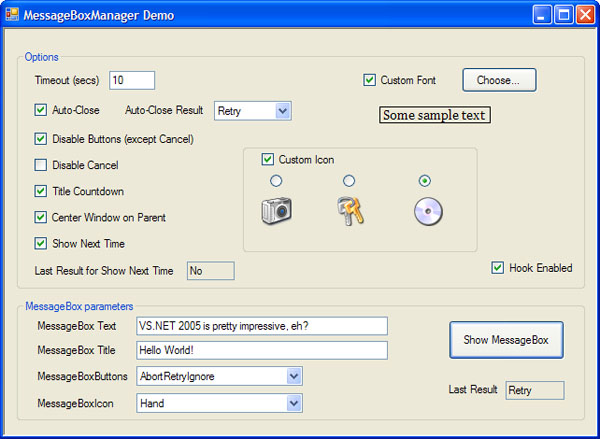
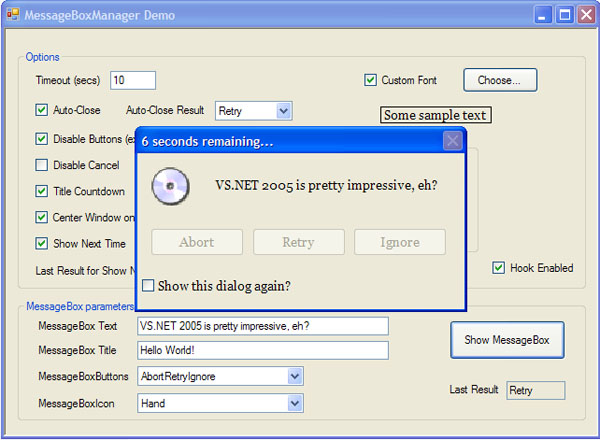
Introduction
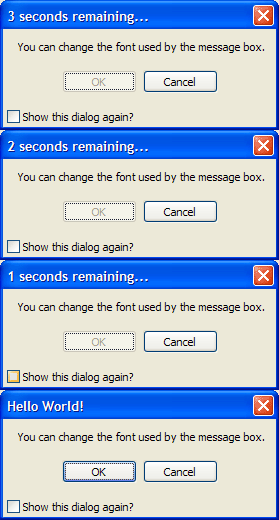
MessageBoxManager is a Windows Forms component that you can drag & drop into a Windows Forms project's main form, and it gives you enhanced message box functionality without forcing you to change your existing calls to any of the MessageBox.Show() overloads. It supports various features such as an auto-closing message-box, such as the one shown in the animated GIF below. Note how the OK button is disabled during the count down, and gets enabled at the end of it. You can also see a Show this dialog again check box that has been added to the message-box. Once again, note you don't have to change your existing code that uses MessageBox.Show, or even code that P/Invokes the MessageBox or MessageBoxIndirect API function calls.
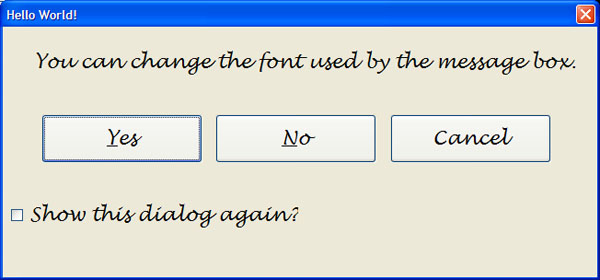
Other features include the ability to force a custom icon (over a default one), and this can be seen in the screenshots on top of this page, as well as the ability to set a custom font. When you set a custom font, the message-box and its child controls are expanded to adjust to the increase in font size. Note that, if you use injudicious font-sizes, you'll get unexpected results. The stretch algorithm assumes that the custom font size is within a reasonable range of values. Here's a screenshot that shows a custom font in action.
Using the class
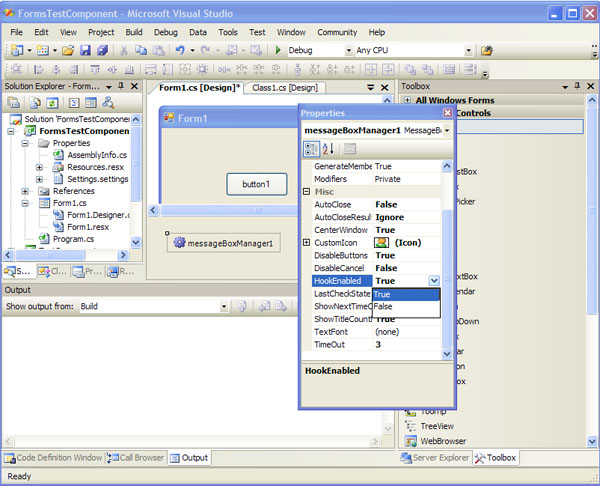
Using the class is pretty straightforward as shown in the screenshot above. Just add the component to your toolbox, and drag & drop it into your main form. Only one instance of component should be used per application per thread. If you have a secondary thread that owns UI (such as a form for instance), that thread will need to have a separate instance of the MessageBoxManager component, and when the instance in the secondary thread is active, that in the primary thread *must be* temporarily disabled. Attempting to use multiple active MessageBoxManager objects from multiple threads or even from one thread will result in unexpected behavior and possibly affect program execution. The component consists entirely of properties (there are no instance methods outside of the compiler generated default constructor), and each of these properties can be directly set using the VS 2005 properties window (as in the above screenshot). The next section will quickly cover the functionality provided by each of these properties.
Class Reference
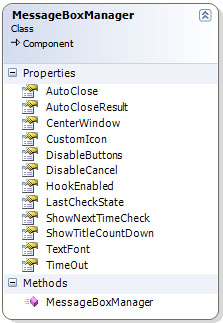
bool HookEnabled- Enables and disables the extended message box functionality. If this is
false, your message-boxes will function as normal. int TimeOut- This specifies the time-out in seconds that is used by the auto-close, button-disable, and title-countdown features.
bool AutoClose- Set this to
trueto close the message-box automatically after the number of seconds specified by theTimeOutproperty has elapsed. DialogResult AutoCloseResult- When the
AutoCloseproperty is set, you can specify aDialogResultvia this property that will be seen by the calling code (that invoked the message-box). bool ShowTitleCountDown- If set to
true, the title will show a count down and at the end of it, the original text will be restored. - If set to
true, during the count down (if any), all buttons except the Cancel button (if it's present) are disabled. Buttons are re-enabled when the count down has finished. bool DisableCancel- If set to
true, the Cancel button (if present) will be disabled if theDisableButtonsproperty is alsotrue. This property has no effect if theDisableButtonsproperty isfalse. bool CenterWindow- If set to
true, the message-box is centered on its parent bool ShowNextTimeCheck- If set to
true, a check box will be shown that prompts the user whether the dialog should be shown the next time. The message-box is resized to fit in this check box. The status of the check box is retrieved using theLastCheckStateproperty. bool LastCheckState- This returns the check state of the last message-box that was shown with a show-again check box. If you change the
ShowNextTimeChecktofalse, be aware that this property will continue will hold whatever value it had previously. Font TextFont- You can set a custom font for the message-box and its controls, including the buttons. Use this feature with some basic sense of sagacity. The message-box is expanded to accomodate for the change in font-size (if any).
Icon CustomIcon- Set this to
trueto forcibly replace the message-box icon (if there's one present) with a custom icon. Note that all icons are blindly replaced if this property istrue. This is handy if you want to show your product icon on all message-boxes shown from your application.
History
- Feb 18 2006 - First version
- Sep 11 2021 - Second version
License
This article, along with any associated source code and files, is licensed under The Microsoft Public License (Ms-PL)